Browser Extension
Get a number for the site you are on, fill it into the form, and fill in the SMS code when it arrives, from the browser toolbar. Uses the same account and balance as the dashboard.
1. Install
Works in Chrome, Edge, Brave, Opera and other Chromium browsers (version 121 or newer) and Firefox 128 or newer.
- Chrome, Brave, Opera: Chrome Web Store (listing in review)
- Firefox: Firefox Add-ons (listing in review)
After installing, pin it: click the puzzle-piece icon in the toolbar and the pin next to NumberOTP, so the icon is always one click away.
2. Sign in
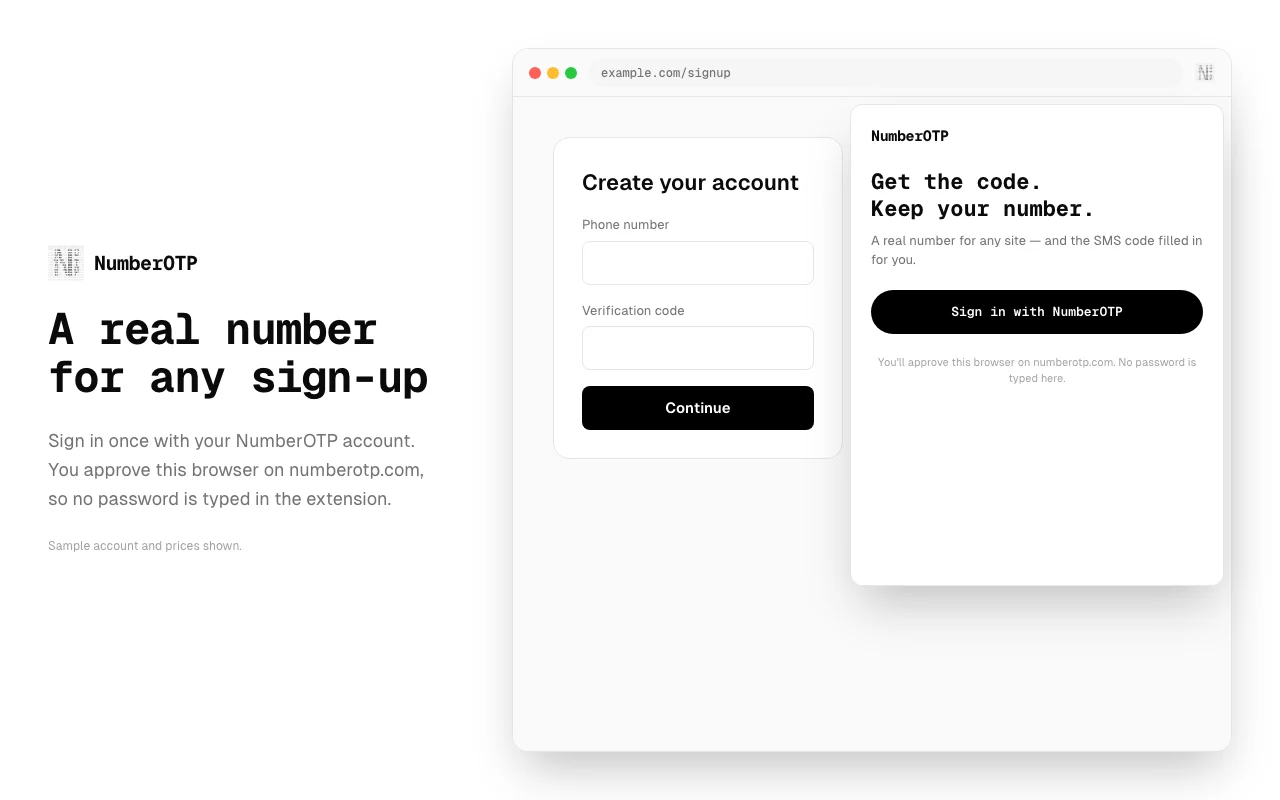
- Click the NumberOTP icon, then Sign in with NumberOTP.
- A tab opens on numberotp.com/device with a short code. Check it matches the code in the popup and approve it. If you have no account yet, create one first.
- The popup switches to your balance and numbers. You never type your password into the extension.
3. Get a number
- Open the sign-up page of the site you want to verify, then open the popup.
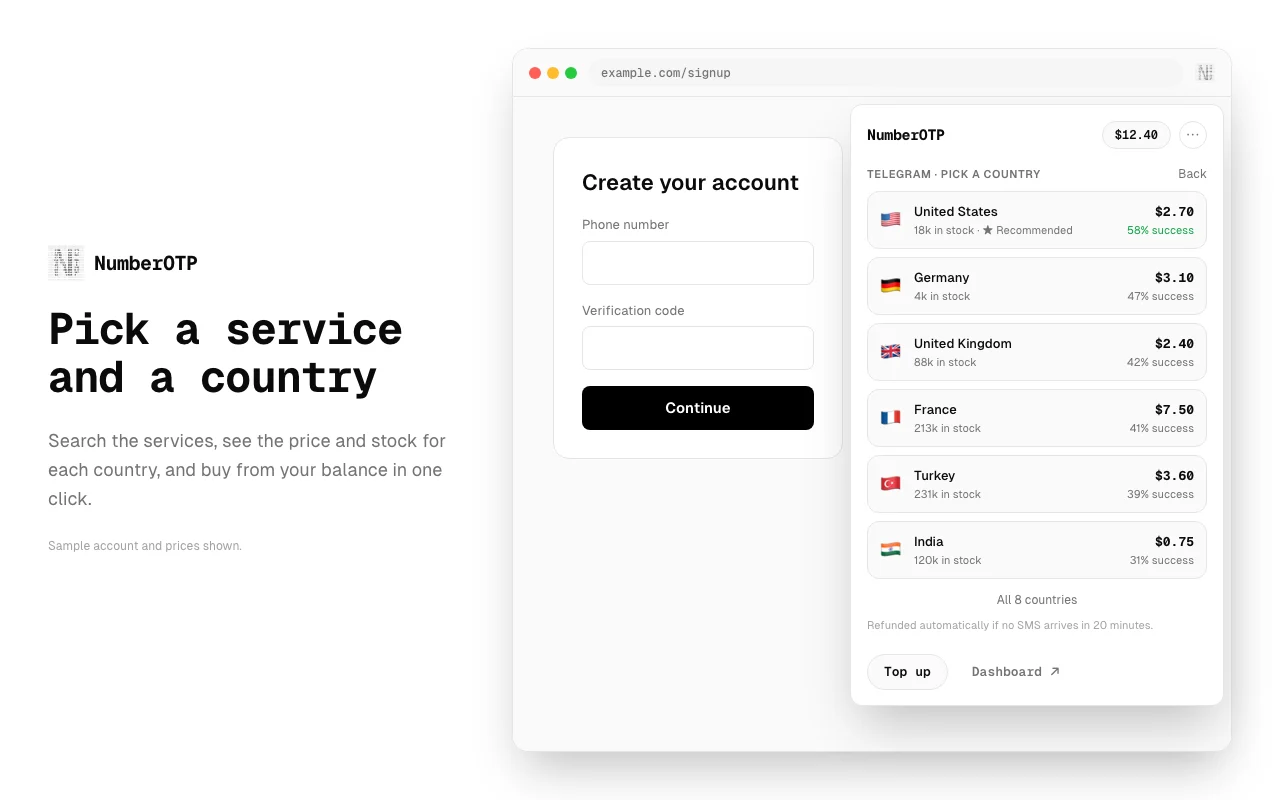
- The popup suggests a number for that site (Get a … number). If it guessed wrong, click Not …? Search and type the site or app name.
- Pick a country. Each row shows the price, how many numbers are in stock, and the recent success rate. The first row is the recommended one.
- Click a country to buy. The price comes off your balance; Top up opens checkout if you need more.
4. Fill the number
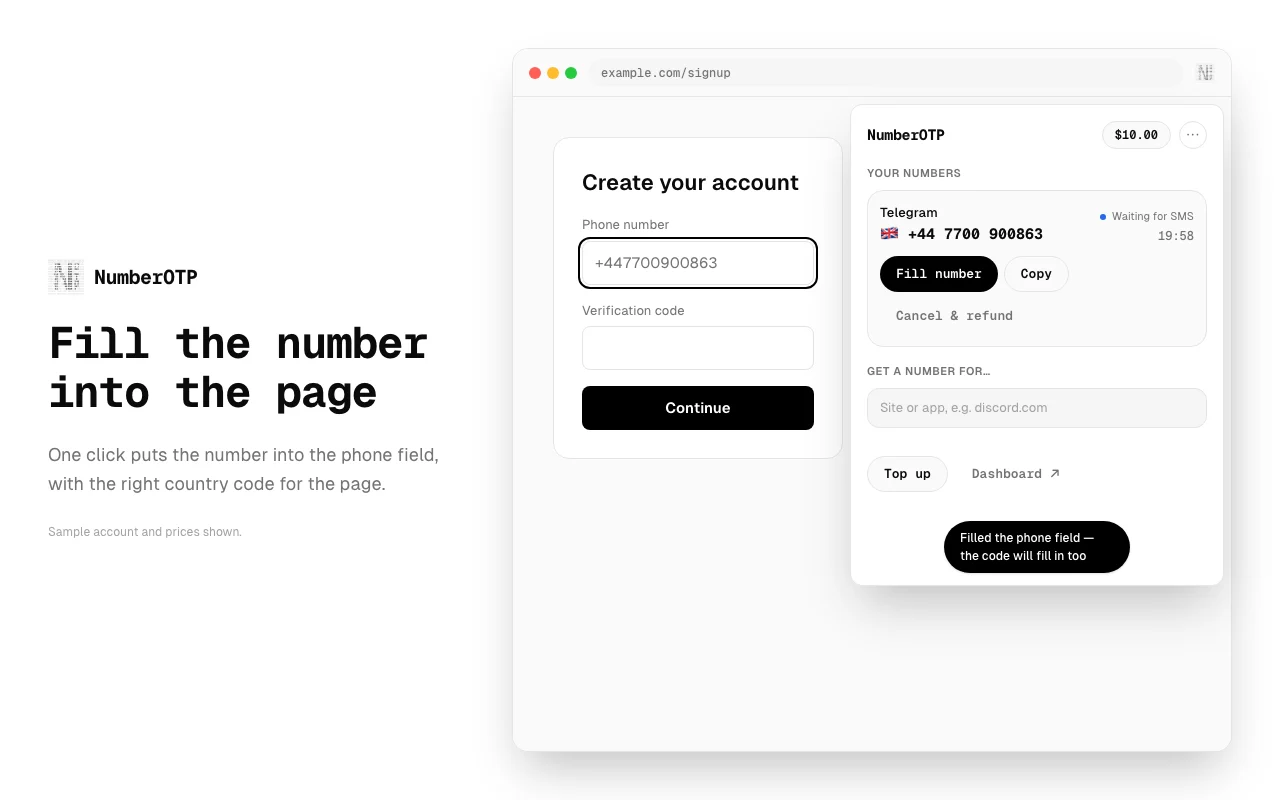
Under Your numbers, click Fill number. The extension finds the phone field on the page, including fields that take “phone number or email”, and types the number in.
- Sites with their own country picker: if the picker already shows the number’s country, only the local part goes in. Otherwise the full international number goes in (for example +44…) and most sites switch their picker to match. If the site keeps another country, the popup says so: choose the country on the site, then use Copy and paste the number.
- First time on a site: the browser asks whether NumberOTP may access that site. Allow it to have the code filled in automatically later. Firefox and Chrome close the popup while asking; the number is still filled.
- The extension never presses Continue or submits the form; check the number and submit it yourself.
5. Get and fill the code
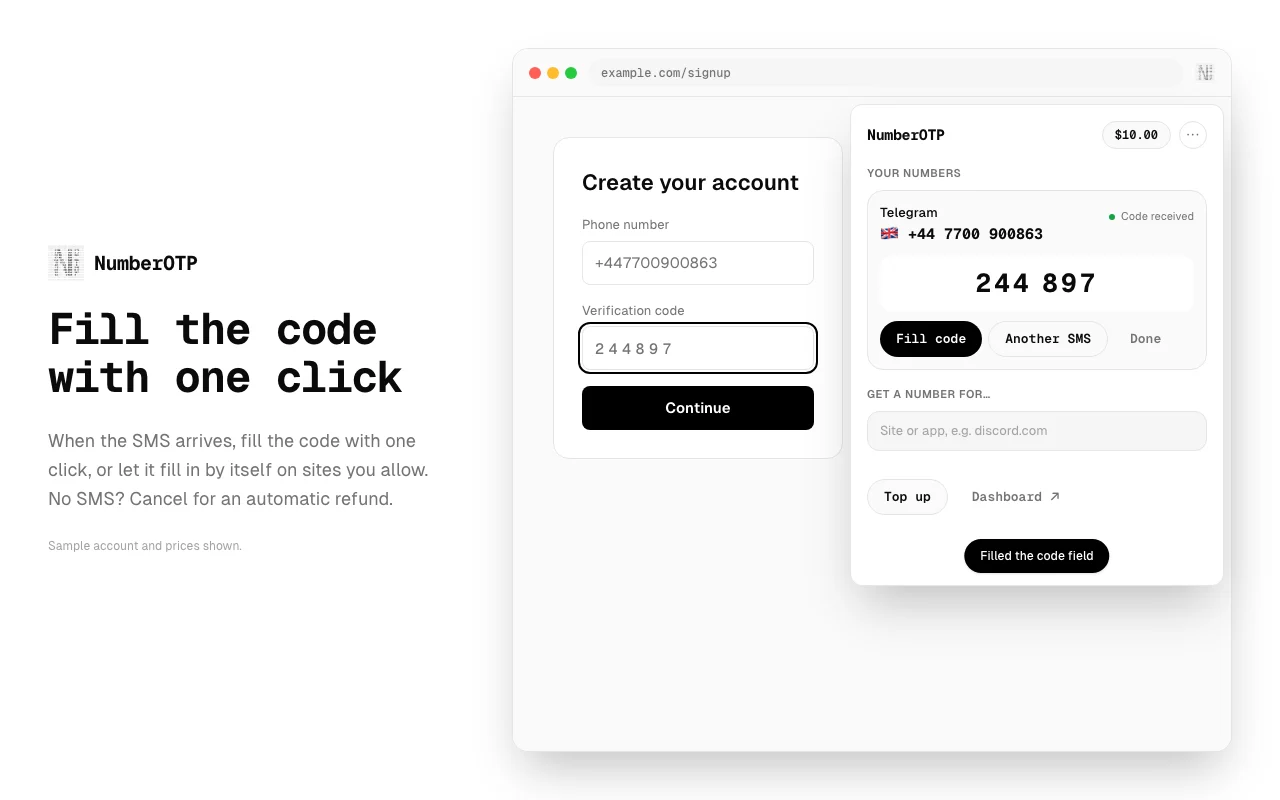
When the SMS arrives you get a browser notification, and the number’s card shows the code.
- On a site you allowed in step 4, the code is filled in by itself.
- Otherwise click Fill code. It handles a single code field and split one-digit boxes. Clicking the code copies it.
- Need another code on the same number? Click Another SMS, then request a new code on the site. Click Done when you are finished.
6. No SMS? Cancel and refund
While a number is waiting, the card shows a countdown. If no SMS arrives, click Cancel & refund and the price goes straight back to your balance. Numbers that time out without an SMS are refunded automatically. See the refund policy.
7. Side panel and alerts
- Side panel (Chrome, Edge): Open side panel in the popup keeps the same interface open beside the page while you sign up. In Firefox, open it from View → Sidebar → NumberOTP.
- Alerts: the ⋯ menu shows whether codes arrive by push (instant) or by checking every 30 seconds. Allow notifications for the browser in your system settings if you don’t see them.
- Language: the ⋯ menu lets you pick one of 8 languages or follow the browser.
- Sign out from the ⋯ menu ends the session on the server too.
8. Permissions and privacy
| Permission | Why |
|---|---|
| activeTab, scripting | Type the number or code into the tab you clicked the extension on, only when you click Fill. |
| One site at a time (optional) | Asked when you click Fill number, so the code can be filled in automatically on that site. Never all sites. |
| notifications, alarms | Tell you when a code arrives; check for codes on a timer when push is unavailable. |
| storage | Keep you signed in, your language, and a short cache of services and your own numbers. |
| clipboardWrite, offscreen | The Copy buttons, including Copy on a notification. |
| sidePanel | The side panel in Chrome. |
The extension only types into fields. It never reads page content back, never submits forms, and skips password fields. It has no content scripts, no analytics and no remote code. It sends NumberOTP what it needs to do what you ask: your sign-in, the hostname of the current site (to suggest a service) and the codes for numbers you bought. See the privacy policy.
9. Troubleshooting
“No phone number field found on this page”
Click into the phone field first, then Fill number again. Some sites put the form in a frame the extension can’t reach; use Copy and paste.
The number went in with the wrong country code
Set the country in the site’s own picker, clear the field, and paste with Copy. Update the extension if you have an older version: since 1.0.0 it puts in the full international number when the site’s picker shows a different country.
The code didn’t fill in by itself
Automatic fill needs the site permission from step 4 and the tab still on the same site. Click Fill code, or click the code to copy it.
No notification
Check that notifications are allowed for your browser in the system settings and not muted by Focus or Do Not Disturb. The ⋯ menu shows which alert mode is active.
Signed out unexpectedly
Sessions end when you sign out, revoke the device, or after a long time without use. Sign in again from the popup; your numbers and balance stay on your account.
Still stuck? Contact support with the site’s address and what the popup said.
Use it for your own accounts and follow each platform’s terms; some platforms don’t allow virtual numbers.